> ## Documentation Index
> Fetch the complete documentation index at: https://docs.asymptotelabs.ai/llms.txt
> Use this file to discover all available pages before exploring further.
# Cursor Cloud Agents
> Capture Cursor cloud agent telemetry and forward cloud-agent runtime logs to customer-managed Google Cloud Storage or Amazon S3
## Integration Overview
Use this integration to capture Cursor cloud-agent activity and upload each
session log to your own Google Cloud Storage or Amazon S3 bucket. It is meant
for testing cloud-agent telemetry without running a hosted Asymptote backend.
This flow depends on the Beacon CLI. You run `beacon cloud` commands from your
workstation to create the object-storage upload path, generate project hooks to
commit to your repository, and generate the setup script that installs Beacon
binaries in the Cursor cloud sandbox.
If you're interested in leveraging this telemetry ingest across your
enterprise, [Asymptote Managed](/deployment/managed) is designed for
production cloud-agent telemetry ingest at scale.
## Overview
Cursor Cloud Agents run in Cursor's cloud environment, so Beacon cannot use the
long-running endpoint agent that local installs use. Instead, commit
project-level Cursor hooks to `.cursor/hooks.json` and use the setup script to
install Beacon binaries in the sandbox. During a cloud-agent session, those
hooks write `/tmp/beacon/runtime.jsonl`; Beacon refreshes the corresponding GCS
or S3 object as supported Cursor hook events run.
```mermaid theme={null}
flowchart LR
CursorCloud["Cursor Cloud Agents"] --> Hooks["Beacon hooks in sandbox"]
Hooks --> RuntimeLog["/tmp/beacon/runtime.jsonl"]
RuntimeLog --> Storage["Customer-managed GCS or S3 bucket"]
```
The setup has four parts:
1. Create a dedicated GCS or S3 upload path with Beacon.
2. Add Beacon cloud telemetry environment variables to the Cursor cloud environment.
3. Commit Beacon's project-level Cursor hooks to `.cursor/hooks.json`.
4. Run a Beacon-generated setup script inside the Cursor cloud environment to
install `/tmp/beacon/bin/beacon` and `/tmp/beacon/bin/beacon-hooks`.
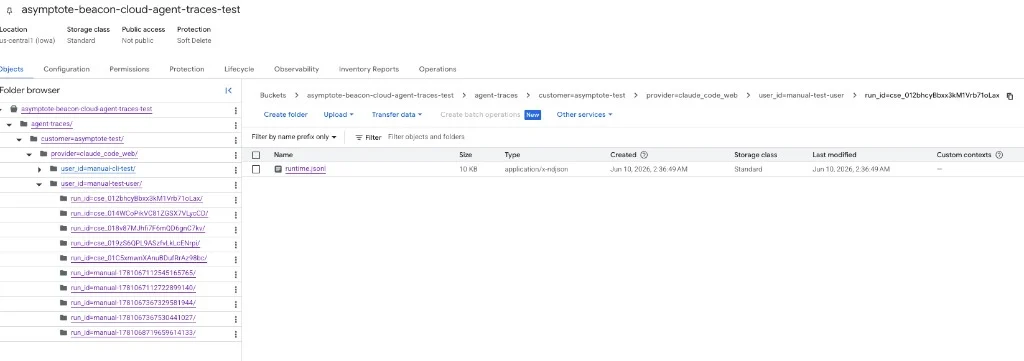
Each Cursor cloud agent conversation writes one readable JSONL object:
```text theme={null}
gs:////runtime/date=YYYY-MM-DD/-cursor_cloud-.jsonl.gz
```
or:
```text theme={null}
s3:////runtime/date=YYYY-MM-DD/-cursor_cloud-.jsonl.gz
```
Beacon uses Cursor's `conversation_id` hook field as the default `run_id` for
Cursor Cloud telemetry. If you set `BEACON_RUN_ID` yourself, Beacon preserves
that value instead.
## Prerequisites
* Beacon CLI `v1.0.3` or later for direct S3 upload. Cursor Cloud prompt capture
requires the branch containing this change until a release includes it.
* For GCS: `gcloud` installed and authenticated to a project where you can
create buckets, service accounts, IAM bindings, and service account keys.
* For S3: AWS CLI installed and authenticated to an account where you can
create buckets, IAM users, inline policies, and access keys.
* `jq` on the verification workstation.
* Cursor Cloud Agent access for the repository you want to test.
* A Cursor cloud environment with outbound access to:
* `oauth2.googleapis.com`
* `storage.googleapis.com`
* `s3..amazonaws.com`
* `github.com`
* `*.githubusercontent.com`
Install or upgrade Beacon before you start:
```bash theme={null}
brew tap asymptote-labs/tap
brew install beacon
brew upgrade beacon
beacon version
```
Authenticate `gcloud` and select your project:
```bash theme={null}
gcloud auth login
gcloud config set project
```
## 1. Create the Object Storage Upload Path
Choose GCS or S3 for the cloud-agent session logs.
### GCS
From your workstation, choose a bucket and prefix:
```bash theme={null}
export GCP_PROJECT="your-gcp-project"
export BEACON_TEST_BUCKET="your-beacon-cloud-agent-traces"
export BEACON_CLOUD_GCS_PREFIX="agent-traces/customer=my-team"
```
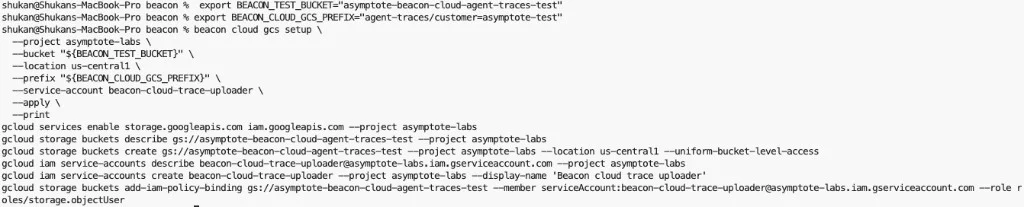
Review the GCP changes Beacon will make:
```bash theme={null}
beacon cloud gcs setup \
--project "$GCP_PROJECT" \
--bucket "$BEACON_TEST_BUCKET" \
--location us-central1 \
--prefix "$BEACON_CLOUD_GCS_PREFIX" \
--service-account beacon-cloud-trace-uploader \
--print
```
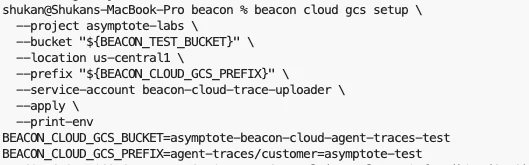
Apply the setup and print the cloud telemetry environment variables:
```bash theme={null}
beacon cloud gcs setup \
--project "$GCP_PROJECT" \
--bucket "$BEACON_TEST_BUCKET" \
--location us-central1 \
--prefix "$BEACON_CLOUD_GCS_PREFIX" \
--service-account beacon-cloud-trace-uploader \
--apply \
--print-env
```
Copy the printed values. Redact `BEACON_CLOUD_GCS_CREDENTIALS_B64` anywhere you
share screenshots or logs.
The helper creates a dedicated uploader service account and grants it object
upload access to the selected bucket.
### S3
From your workstation, choose a bucket, region, and prefix:
```bash theme={null}
export AWS_REGION="us-east-1"
export BEACON_TEST_BUCKET="your-beacon-cloud-agent-traces"
export BEACON_CLOUD_S3_PREFIX="agent-traces/customer=my-team"
```
Review the AWS changes Beacon will make:
```bash theme={null}
beacon cloud s3 setup \
--bucket "$BEACON_TEST_BUCKET" \
--region "$AWS_REGION" \
--prefix "$BEACON_CLOUD_S3_PREFIX" \
--iam-user beacon-cloud-trace-uploader \
--print
```
Apply the setup and print the cloud telemetry environment variables:
```bash theme={null}
beacon cloud s3 setup \
--bucket "$BEACON_TEST_BUCKET" \
--region "$AWS_REGION" \
--prefix "$BEACON_CLOUD_S3_PREFIX" \
--iam-user beacon-cloud-trace-uploader \
--apply \
--print-env
```
The helper creates a dedicated IAM user and grants it `s3:PutObject` only under
the selected bucket prefix.
Copy the printed values. Treat `AWS_ACCESS_KEY_ID` and
`AWS_SECRET_ACCESS_KEY` as sensitive and redact them from screenshots and logs.
## 2. Configure Cursor Cloud Agents
Open your Cursor Cloud Agent environment for the repository.
Add these environment variables:
```bash theme={null}
BEACON_ORIGIN=cloud
BEACON_RUN_PROVIDER=cursor_cloud
BEACON_RUN_EPHEMERAL=true
BEACON_CLOUD_USER_ID_HASH=
```
For GCS, add:
```bash theme={null}
BEACON_CLOUD_GCS_BUCKET=
BEACON_CLOUD_GCS_PREFIX=
BEACON_CLOUD_GCS_CREDENTIALS_B64=
```
For S3, add:
```bash theme={null}
BEACON_CLOUD_UPLOAD=s3
BEACON_CLOUD_S3_BUCKET=
BEACON_CLOUD_S3_PREFIX=
BEACON_CLOUD_S3_REGION=
AWS_ACCESS_KEY_ID=
AWS_SECRET_ACCESS_KEY=
```
If your Cursor cloud environment restricts outbound network access, allow:
```text theme={null}
oauth2.googleapis.com
storage.googleapis.com
s3..amazonaws.com
github.com
*.githubusercontent.com
```
## 3. Commit Cursor Project Hooks
Cursor Cloud Agents load project hooks from `.cursor/hooks.json` at repository
checkout and task start. Generate the hook file locally, commit it, and push it
before starting cloud agents:
```bash theme={null}
mkdir -p .cursor
beacon cloud cursor print-hooks \
--binary-path /tmp/beacon/bin/beacon-hooks \
--log-path /tmp/beacon/runtime.jsonl > .cursor/hooks.json
git add .cursor/hooks.json
git commit -m "Add Beacon Cursor Cloud hooks"
git push
```
Do not rely on generating `.cursor/hooks.json` from inside the Cursor Cloud
setup script. Cursor Cloud may load project hooks before the setup script
creates files in the VM. Committing `.cursor/hooks.json` makes the hook config
available when the agent starts.
## 4. Add the Setup Script
Generate the setup script for your Beacon release:
```bash theme={null}
beacon cloud cursor print-setup --version vX.Y.Z
```
Replace `vX.Y.Z` with a release tag that contains Cursor Cloud prompt capture.
Until that release exists, use the source-build path below; `v1.0.3` supports
direct S3 upload but predates the prompt hook.
Paste the generated script into the Cursor cloud environment setup step. The
script:
* installs `beacon` and `beacon-hooks` in `/tmp/beacon/bin`,
* does not modify `.cursor/hooks.json`,
* expects project hooks to already be committed in the repository.
If you are testing unreleased Beacon changes from a branch, build `beacon` and
`beacon-hooks` from that branch in the setup script instead of using
`print-setup --version`.
## 5. Run a Cloud Agent Task
Start a Cursor cloud agent task that uses tools so the environment becomes
writable and project hooks become active. For example:
```text theme={null}
Read the README, run pwd && ls, create a tiny temporary markdown note under
/tmp or in the repo, then summarize what you did.
```
Beacon captures observed prompt submissions, tool use, shell execution, file
reads and edits, subagent lifecycle events, and compaction events where Cursor
exposes hook payloads.
Then submit a prompt-only follow-up with a unique marker:
```text theme={null}
BEACON_PROMPT_SMOKE_
Do not inspect files or run tools. Reply exactly: PROMPT CAPTURE TEST COMPLETE
```
Beacon captures prompt text through Cursor Cloud's `beforeSubmitPrompt`
project hook and uploads that event immediately. Commit `.cursor/hooks.json`
before starting the run so the prompt hook is available when the cloud
environment starts. Cursor can perform early read-only or bootstrap work
before project hooks become active, so the initial launch prompt may be
absent; follow-up prompts are captured once hooks are running.
`sessionStart` and `sessionEnd` remain unavailable. See
[Cursor's Cloud Agent hook support matrix](https://cursor.com/docs/hooks#cloud-agent-support)
for the current platform support list.
## 6. Verify Object Storage Upload
For GCS, list the uploaded session objects:
```bash theme={null}
gcloud storage ls --recursive "gs://${BEACON_TEST_BUCKET}/${BEACON_CLOUD_GCS_PREFIX}/"
```
For S3:
```bash theme={null}
aws s3 ls --recursive "s3://${BEACON_TEST_BUCKET}/${BEACON_CLOUD_S3_PREFIX}/"
```
You should see a path like:
```text theme={null}
runtime/date=YYYY-MM-DD/-cursor_cloud-.jsonl.gz
```
Inspect the log:
```bash theme={null}
gcloud storage cat "gs://${BEACON_TEST_BUCKET}/${BEACON_CLOUD_GCS_PREFIX}/runtime/date=/
 Apply the setup and print the cloud telemetry environment variables:
```bash theme={null}
beacon cloud gcs setup \
--project "$GCP_PROJECT" \
--bucket "$BEACON_TEST_BUCKET" \
--location us-central1 \
--prefix "$BEACON_CLOUD_GCS_PREFIX" \
--service-account beacon-cloud-trace-uploader \
--apply \
--print-env
```
Copy the printed values. Redact `BEACON_CLOUD_GCS_CREDENTIALS_B64` anywhere you
share screenshots or logs.
Apply the setup and print the cloud telemetry environment variables:
```bash theme={null}
beacon cloud gcs setup \
--project "$GCP_PROJECT" \
--bucket "$BEACON_TEST_BUCKET" \
--location us-central1 \
--prefix "$BEACON_CLOUD_GCS_PREFIX" \
--service-account beacon-cloud-trace-uploader \
--apply \
--print-env
```
Copy the printed values. Redact `BEACON_CLOUD_GCS_CREDENTIALS_B64` anywhere you
share screenshots or logs.
 The helper creates a dedicated uploader service account and grants it object
upload access to the selected bucket.
### S3
From your workstation, choose a bucket, region, and prefix:
```bash theme={null}
export AWS_REGION="us-east-1"
export BEACON_TEST_BUCKET="your-beacon-cloud-agent-traces"
export BEACON_CLOUD_S3_PREFIX="agent-traces/customer=my-team"
```
Review the AWS changes Beacon will make:
```bash theme={null}
beacon cloud s3 setup \
--bucket "$BEACON_TEST_BUCKET" \
--region "$AWS_REGION" \
--prefix "$BEACON_CLOUD_S3_PREFIX" \
--iam-user beacon-cloud-trace-uploader \
--print
```
Apply the setup and print the cloud telemetry environment variables:
```bash theme={null}
beacon cloud s3 setup \
--bucket "$BEACON_TEST_BUCKET" \
--region "$AWS_REGION" \
--prefix "$BEACON_CLOUD_S3_PREFIX" \
--iam-user beacon-cloud-trace-uploader \
--apply \
--print-env
```
The helper creates a dedicated IAM user and grants it `s3:PutObject` only under
the selected bucket prefix.
Copy the printed values. Treat `AWS_ACCESS_KEY_ID` and
`AWS_SECRET_ACCESS_KEY` as sensitive and redact them from screenshots and logs.
## 2. Configure Cursor Cloud Agents
Open your Cursor Cloud Agent environment for the repository.
Add these environment variables:
```bash theme={null}
BEACON_ORIGIN=cloud
BEACON_RUN_PROVIDER=cursor_cloud
BEACON_RUN_EPHEMERAL=true
BEACON_CLOUD_USER_ID_HASH=
The helper creates a dedicated uploader service account and grants it object
upload access to the selected bucket.
### S3
From your workstation, choose a bucket, region, and prefix:
```bash theme={null}
export AWS_REGION="us-east-1"
export BEACON_TEST_BUCKET="your-beacon-cloud-agent-traces"
export BEACON_CLOUD_S3_PREFIX="agent-traces/customer=my-team"
```
Review the AWS changes Beacon will make:
```bash theme={null}
beacon cloud s3 setup \
--bucket "$BEACON_TEST_BUCKET" \
--region "$AWS_REGION" \
--prefix "$BEACON_CLOUD_S3_PREFIX" \
--iam-user beacon-cloud-trace-uploader \
--print
```
Apply the setup and print the cloud telemetry environment variables:
```bash theme={null}
beacon cloud s3 setup \
--bucket "$BEACON_TEST_BUCKET" \
--region "$AWS_REGION" \
--prefix "$BEACON_CLOUD_S3_PREFIX" \
--iam-user beacon-cloud-trace-uploader \
--apply \
--print-env
```
The helper creates a dedicated IAM user and grants it `s3:PutObject` only under
the selected bucket prefix.
Copy the printed values. Treat `AWS_ACCESS_KEY_ID` and
`AWS_SECRET_ACCESS_KEY` as sensitive and redact them from screenshots and logs.
## 2. Configure Cursor Cloud Agents
Open your Cursor Cloud Agent environment for the repository.
Add these environment variables:
```bash theme={null}
BEACON_ORIGIN=cloud
BEACON_RUN_PROVIDER=cursor_cloud
BEACON_RUN_EPHEMERAL=true
BEACON_CLOUD_USER_ID_HASH=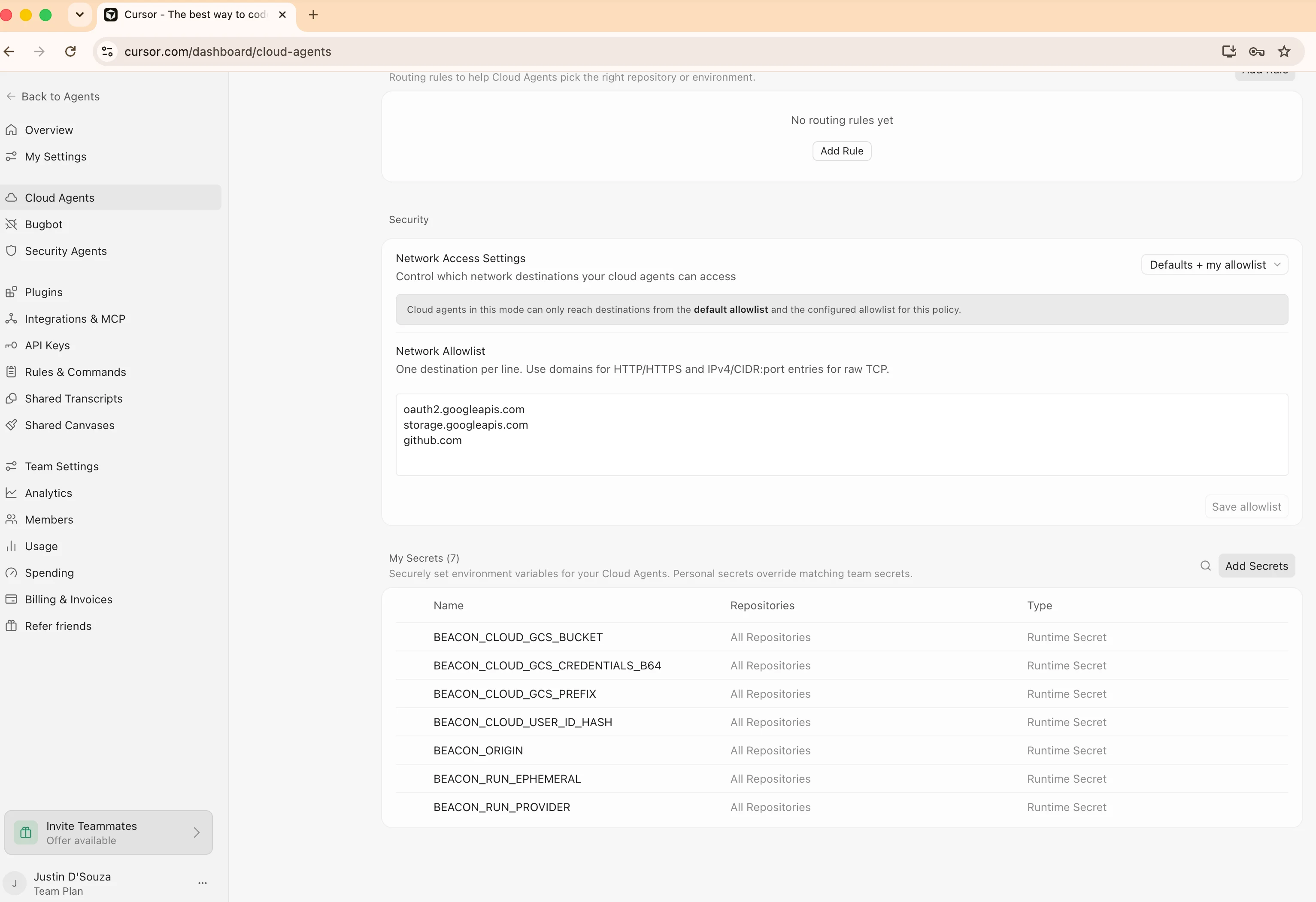 If your Cursor cloud environment restricts outbound network access, allow:
```text theme={null}
oauth2.googleapis.com
storage.googleapis.com
s3.
If your Cursor cloud environment restricts outbound network access, allow:
```text theme={null}
oauth2.googleapis.com
storage.googleapis.com
s3.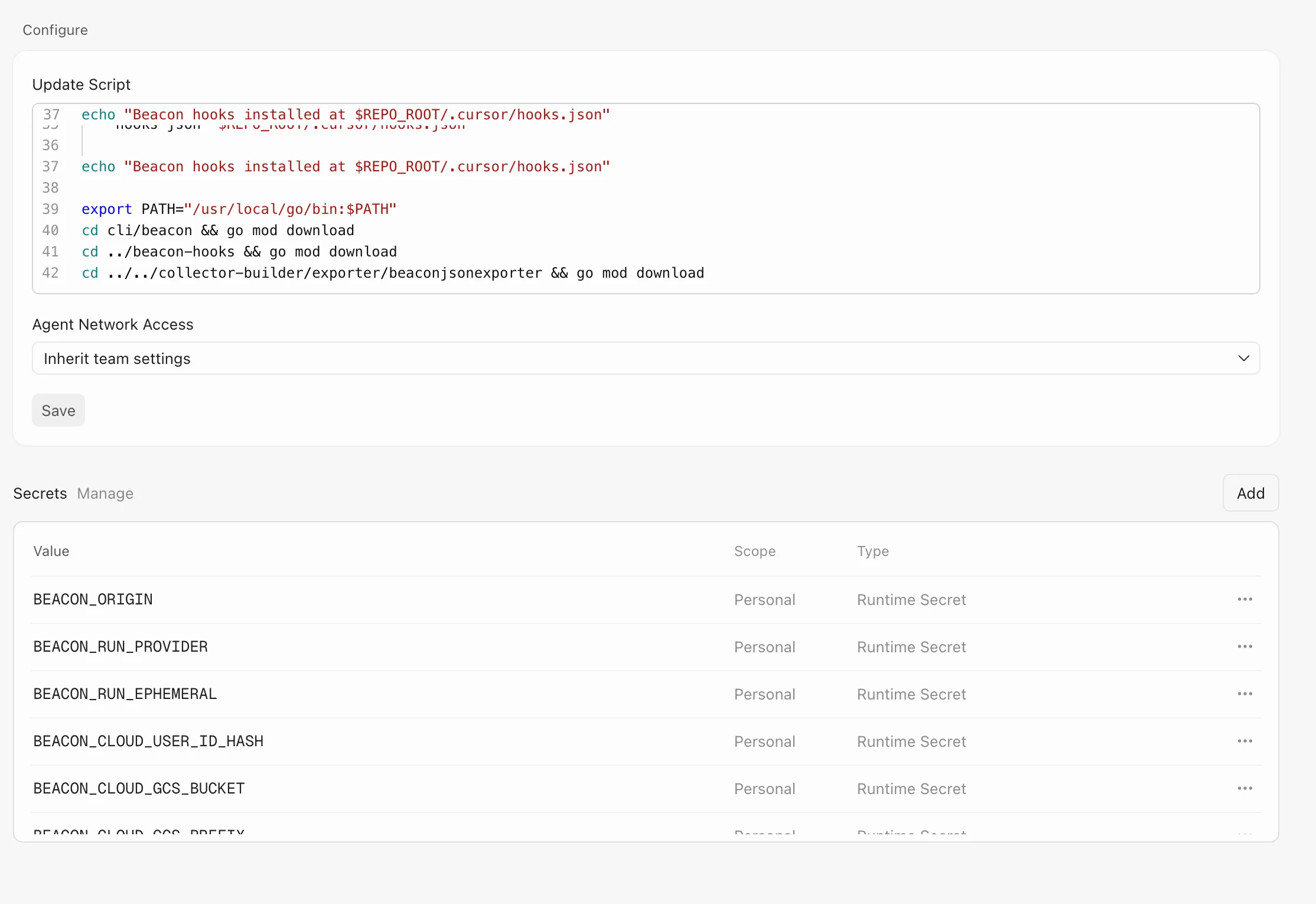
 Inspect the log:
```bash theme={null}
gcloud storage cat "gs://${BEACON_TEST_BUCKET}/${BEACON_CLOUD_GCS_PREFIX}/runtime/date=
Inspect the log:
```bash theme={null}
gcloud storage cat "gs://${BEACON_TEST_BUCKET}/${BEACON_CLOUD_GCS_PREFIX}/runtime/date=