> ## Documentation Index
> Fetch the complete documentation index at: https://docs.asymptotelabs.ai/llms.txt
> Use this file to discover all available pages before exploring further.
# Claude Code Cloud Agents
> Capture Claude Code cloud agent telemetry and forward cloud-agent runtime logs to customer-managed object storage
## Integration Overview
Use this integration to capture Claude Code cloud-agent activity and upload each
session log to your own Google Cloud Storage or Amazon S3 bucket. It is meant
for testing cloud-agent telemetry without running a hosted Asymptote backend.
This flow depends on the Beacon CLI. You run `beacon cloud` commands from your
workstation to create the object-storage upload path, print Claude environment
variables, and generate the setup script that runs inside the Claude cloud
sandbox.
If you're interested in leveraging this telemetry ingest across your
enterprise, [Asymptote Managed](/deployment/managed) is designed for
production cloud-agent telemetry ingest at scale.
## Overview
Claude Code Cloud Agents run in Anthropic's cloud environment, so Beacon cannot
use the long-running endpoint agent that local installs use. Instead, the setup
script installs Beacon hooks inside the sandbox. During a cloud-agent session,
those hooks write `/tmp/beacon/runtime.jsonl`; at the end of the session, Beacon
uploads that file to customer-managed object storage.
```mermaid theme={null}
flowchart LR
ClaudeWeb["Claude Code Cloud Agents"] --> Hooks["Beacon hooks in sandbox"]
Hooks --> RuntimeLog["/tmp/beacon/runtime.jsonl"]
RuntimeLog --> Storage["Customer-managed GCS or S3 bucket"]
```
The setup has three parts:
1. Create a dedicated GCS or S3 upload path with Beacon.
2. Add Beacon cloud telemetry environment variables to the Claude Code cloud environment.
3. Paste a Beacon-generated setup script into the Claude cloud environment.
Each Claude Code cloud agent session writes one readable JSONL object:
```text theme={null}
gs:////runtime/date=YYYY-MM-DD/-claude_code_web-.jsonl.gz
```
or:
```text theme={null}
s3:////runtime/date=YYYY-MM-DD/-claude_code_web-.jsonl.gz
```
## Prerequisites
* Beacon CLI `v0.0.51` or later.
* For GCS: `gcloud` installed and authenticated to the Google Cloud project you
will use for telemetry storage.
* For S3: AWS CLI installed and authenticated to an AWS account where you can
create buckets, IAM users, inline IAM policies, and access keys.
* Claude Code cloud agent access for the repository you want to test.
* A Claude cloud environment with outbound access to:
* For GCS: `oauth2.googleapis.com` and `storage.googleapis.com`
* For S3: `s3..amazonaws.com`
* `github.com`
* `*.githubusercontent.com`
Install or upgrade Beacon before you start:
```bash theme={null}
brew tap asymptote-labs/tap
brew install beacon
brew upgrade beacon
beacon version
```
For GCS, authenticate `gcloud` and select your project:
```bash theme={null}
gcloud auth login
gcloud config set project
```
For S3, authenticate the AWS CLI:
```bash theme={null}
aws sts get-caller-identity
```
## 1. Create the Upload Path
Choose GCS or S3 for the cloud-agent session logs.
### GCS
From your workstation, choose a bucket and prefix:
```bash theme={null}
export GCP_PROJECT="your-gcp-project"
export BEACON_TEST_BUCKET="your-beacon-cloud-agent-traces"
export BEACON_CLOUD_GCS_PREFIX="agent-traces/customer=my-team"
```
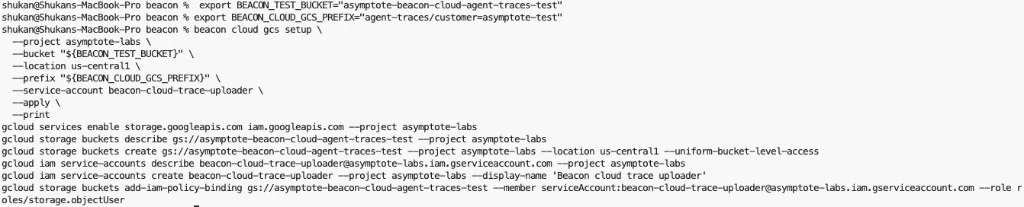
Review the GCP changes Beacon will make:
```bash theme={null}
beacon cloud gcs setup \
--project "$GCP_PROJECT" \
--bucket "$BEACON_TEST_BUCKET" \
--location us-central1 \
--prefix "$BEACON_CLOUD_GCS_PREFIX" \
--service-account beacon-cloud-trace-uploader \
--print
```
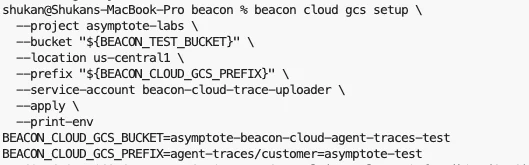
Apply the setup and print the Claude environment variables:
```bash theme={null}
beacon cloud gcs setup \
--project "$GCP_PROJECT" \
--bucket "$BEACON_TEST_BUCKET" \
--location us-central1 \
--prefix "$BEACON_CLOUD_GCS_PREFIX" \
--service-account beacon-cloud-trace-uploader \
--apply \
--print-env
```
Copy the printed values. Redact `BEACON_CLOUD_GCS_CREDENTIALS_B64` anywhere you
share screenshots or logs.
The helper creates a dedicated uploader service account and grants it object
upload access to the selected bucket.
### S3
From your workstation, choose a bucket, region, and prefix:
```bash theme={null}
export AWS_REGION="us-east-1"
export BEACON_TEST_BUCKET="your-beacon-cloud-agent-traces"
export BEACON_CLOUD_S3_PREFIX="agent-traces/customer=my-team"
```
Review the AWS changes Beacon will make:
```bash theme={null}
beacon cloud s3 setup \
--bucket "$BEACON_TEST_BUCKET" \
--region "$AWS_REGION" \
--prefix "$BEACON_CLOUD_S3_PREFIX" \
--iam-user beacon-cloud-trace-uploader \
--print
```
Apply the setup and print the Claude environment variables:
```bash theme={null}
beacon cloud s3 setup \
--bucket "$BEACON_TEST_BUCKET" \
--region "$AWS_REGION" \
--prefix "$BEACON_CLOUD_S3_PREFIX" \
--iam-user beacon-cloud-trace-uploader \
--apply \
--print-env
```
Copy the printed values. Redact `AWS_ACCESS_KEY_ID` and
`AWS_SECRET_ACCESS_KEY` anywhere you share screenshots or logs.
The helper creates a dedicated IAM user and grants it `s3:PutObject` only under
the selected bucket prefix.
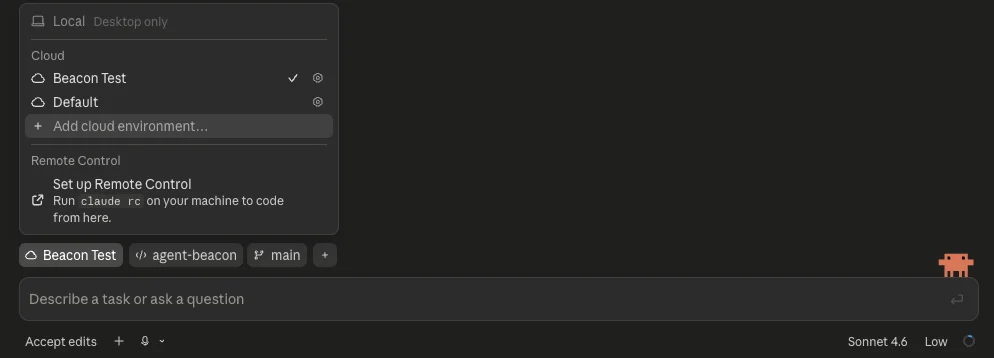
## 2. Configure Claude Code Cloud Agents
Open the Claude Code web application and select the cloud environment for your
repository.
Set network access to **Custom** and allow:
```text theme={null}
s3..amazonaws.com
github.com
*.githubusercontent.com
```
For GCS, allow `oauth2.googleapis.com` and `storage.googleapis.com` instead of
the S3 regional hostname.
Add these common environment variables:
```bash theme={null}
BEACON_ORIGIN=cloud
BEACON_RUN_PROVIDER=claude_code_web
BEACON_RUN_EPHEMERAL=true
BEACON_CLOUD_USER_ID_HASH=
```
For GCS, add:
```bash theme={null}
BEACON_CLOUD_GCS_BUCKET=
BEACON_CLOUD_GCS_PREFIX=
BEACON_CLOUD_GCS_CREDENTIALS_B64=
```
For S3, add:
```bash theme={null}
BEACON_CLOUD_UPLOAD=s3
BEACON_CLOUD_S3_BUCKET=
BEACON_CLOUD_S3_PREFIX=
BEACON_CLOUD_S3_REGION=
AWS_ACCESS_KEY_ID=
AWS_SECRET_ACCESS_KEY=
```
## 3. Add the Setup Script
Generate the setup script for your Beacon release:
```bash theme={null}
beacon cloud claude-web print-setup --version v0.0.95
```
Paste the generated script into the Claude environment **Setup script** field.
The script:
* installs `beacon` and `beacon-hooks` in `/tmp/beacon/bin`,
* finds the cloud sandbox repository root,
* writes `.claude/settings.local.json` inside the sandbox clone,
* excludes generated Claude settings from git commits.
If you are testing unreleased Beacon changes from a branch, build `beacon` and
`beacon-hooks` from that branch in the setup script instead of using
`print-setup --version`.
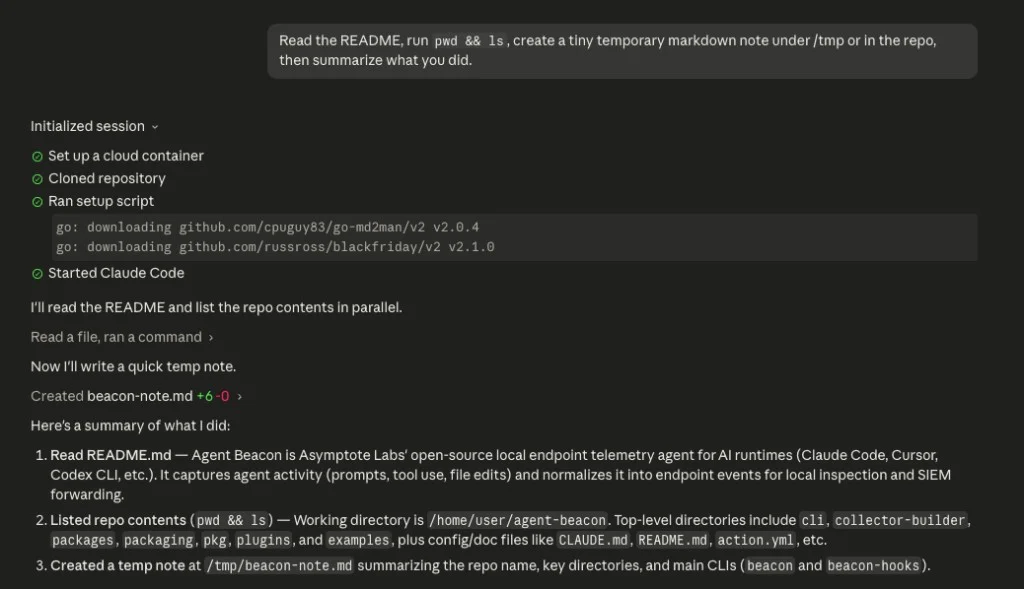
## 4. Run a Cloud Agent Task
Start a Claude Code cloud agent task that uses tools. You can start the task
from the Claude app on your phone or from the Claude Code web application. For
example:
```text theme={null}
Read the README, run pwd && ls, create a tiny temporary markdown note under /tmp or in the repo, then summarize what you did.
```
## 5. Verify Upload
For GCS, list the uploaded session objects:
```bash theme={null}
gcloud storage ls --recursive "gs://${BEACON_TEST_BUCKET}/${BEACON_CLOUD_GCS_PREFIX}/"
```
For S3, list the uploaded session objects:
```bash theme={null}
aws s3 ls --recursive "s3://${BEACON_TEST_BUCKET}/${BEACON_CLOUD_S3_PREFIX}/"
```
You should see a path like:
```text theme={null}
runtime/date=YYYY-MM-DD/-claude_code_web-cse_....jsonl.gz
```
Inspect the log:
```bash theme={null}
gcloud storage cat "gs://${BEACON_TEST_BUCKET}/${BEACON_CLOUD_GCS_PREFIX}/runtime/date=/
 Apply the setup and print the Claude environment variables:
```bash theme={null}
beacon cloud gcs setup \
--project "$GCP_PROJECT" \
--bucket "$BEACON_TEST_BUCKET" \
--location us-central1 \
--prefix "$BEACON_CLOUD_GCS_PREFIX" \
--service-account beacon-cloud-trace-uploader \
--apply \
--print-env
```
Copy the printed values. Redact `BEACON_CLOUD_GCS_CREDENTIALS_B64` anywhere you
share screenshots or logs.
Apply the setup and print the Claude environment variables:
```bash theme={null}
beacon cloud gcs setup \
--project "$GCP_PROJECT" \
--bucket "$BEACON_TEST_BUCKET" \
--location us-central1 \
--prefix "$BEACON_CLOUD_GCS_PREFIX" \
--service-account beacon-cloud-trace-uploader \
--apply \
--print-env
```
Copy the printed values. Redact `BEACON_CLOUD_GCS_CREDENTIALS_B64` anywhere you
share screenshots or logs.
 The helper creates a dedicated uploader service account and grants it object
upload access to the selected bucket.
### S3
From your workstation, choose a bucket, region, and prefix:
```bash theme={null}
export AWS_REGION="us-east-1"
export BEACON_TEST_BUCKET="your-beacon-cloud-agent-traces"
export BEACON_CLOUD_S3_PREFIX="agent-traces/customer=my-team"
```
Review the AWS changes Beacon will make:
```bash theme={null}
beacon cloud s3 setup \
--bucket "$BEACON_TEST_BUCKET" \
--region "$AWS_REGION" \
--prefix "$BEACON_CLOUD_S3_PREFIX" \
--iam-user beacon-cloud-trace-uploader \
--print
```
Apply the setup and print the Claude environment variables:
```bash theme={null}
beacon cloud s3 setup \
--bucket "$BEACON_TEST_BUCKET" \
--region "$AWS_REGION" \
--prefix "$BEACON_CLOUD_S3_PREFIX" \
--iam-user beacon-cloud-trace-uploader \
--apply \
--print-env
```
Copy the printed values. Redact `AWS_ACCESS_KEY_ID` and
`AWS_SECRET_ACCESS_KEY` anywhere you share screenshots or logs.
The helper creates a dedicated IAM user and grants it `s3:PutObject` only under
the selected bucket prefix.
## 2. Configure Claude Code Cloud Agents
Open the Claude Code web application and select the cloud environment for your
repository.
The helper creates a dedicated uploader service account and grants it object
upload access to the selected bucket.
### S3
From your workstation, choose a bucket, region, and prefix:
```bash theme={null}
export AWS_REGION="us-east-1"
export BEACON_TEST_BUCKET="your-beacon-cloud-agent-traces"
export BEACON_CLOUD_S3_PREFIX="agent-traces/customer=my-team"
```
Review the AWS changes Beacon will make:
```bash theme={null}
beacon cloud s3 setup \
--bucket "$BEACON_TEST_BUCKET" \
--region "$AWS_REGION" \
--prefix "$BEACON_CLOUD_S3_PREFIX" \
--iam-user beacon-cloud-trace-uploader \
--print
```
Apply the setup and print the Claude environment variables:
```bash theme={null}
beacon cloud s3 setup \
--bucket "$BEACON_TEST_BUCKET" \
--region "$AWS_REGION" \
--prefix "$BEACON_CLOUD_S3_PREFIX" \
--iam-user beacon-cloud-trace-uploader \
--apply \
--print-env
```
Copy the printed values. Redact `AWS_ACCESS_KEY_ID` and
`AWS_SECRET_ACCESS_KEY` anywhere you share screenshots or logs.
The helper creates a dedicated IAM user and grants it `s3:PutObject` only under
the selected bucket prefix.
## 2. Configure Claude Code Cloud Agents
Open the Claude Code web application and select the cloud environment for your
repository.
 Set network access to **Custom** and allow:
```text theme={null}
s3.
Set network access to **Custom** and allow:
```text theme={null}
s3.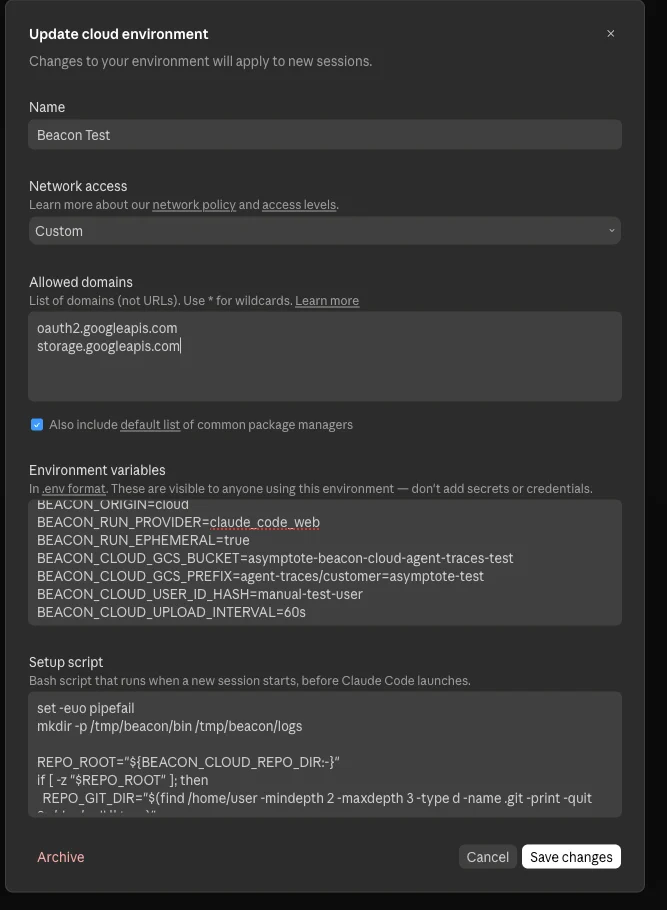 ## 3. Add the Setup Script
Generate the setup script for your Beacon release:
```bash theme={null}
beacon cloud claude-web print-setup --version v0.0.95
```
Paste the generated script into the Claude environment **Setup script** field.
The script:
* installs `beacon` and `beacon-hooks` in `/tmp/beacon/bin`,
* finds the cloud sandbox repository root,
* writes `.claude/settings.local.json` inside the sandbox clone,
* excludes generated Claude settings from git commits.
## 3. Add the Setup Script
Generate the setup script for your Beacon release:
```bash theme={null}
beacon cloud claude-web print-setup --version v0.0.95
```
Paste the generated script into the Claude environment **Setup script** field.
The script:
* installs `beacon` and `beacon-hooks` in `/tmp/beacon/bin`,
* finds the cloud sandbox repository root,
* writes `.claude/settings.local.json` inside the sandbox clone,
* excludes generated Claude settings from git commits.
 ## 5. Verify Upload
For GCS, list the uploaded session objects:
```bash theme={null}
gcloud storage ls --recursive "gs://${BEACON_TEST_BUCKET}/${BEACON_CLOUD_GCS_PREFIX}/"
```
For S3, list the uploaded session objects:
```bash theme={null}
aws s3 ls --recursive "s3://${BEACON_TEST_BUCKET}/${BEACON_CLOUD_S3_PREFIX}/"
```
You should see a path like:
```text theme={null}
runtime/date=YYYY-MM-DD/
## 5. Verify Upload
For GCS, list the uploaded session objects:
```bash theme={null}
gcloud storage ls --recursive "gs://${BEACON_TEST_BUCKET}/${BEACON_CLOUD_GCS_PREFIX}/"
```
For S3, list the uploaded session objects:
```bash theme={null}
aws s3 ls --recursive "s3://${BEACON_TEST_BUCKET}/${BEACON_CLOUD_S3_PREFIX}/"
```
You should see a path like:
```text theme={null}
runtime/date=YYYY-MM-DD/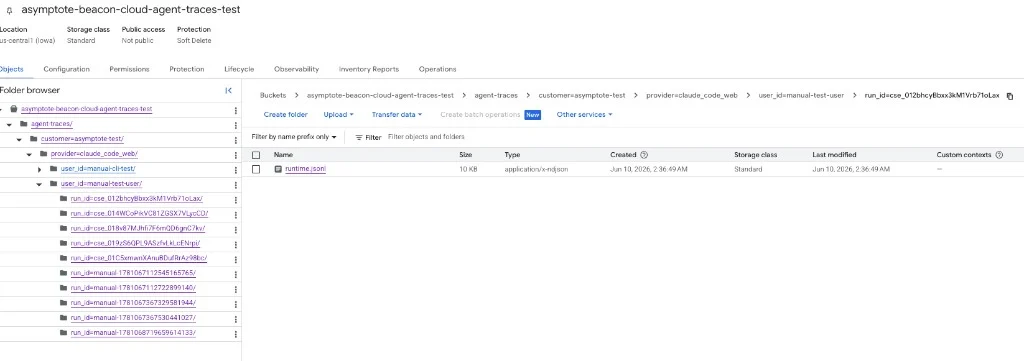 Inspect the log:
```bash theme={null}
gcloud storage cat "gs://${BEACON_TEST_BUCKET}/${BEACON_CLOUD_GCS_PREFIX}/runtime/date=
Inspect the log:
```bash theme={null}
gcloud storage cat "gs://${BEACON_TEST_BUCKET}/${BEACON_CLOUD_GCS_PREFIX}/runtime/date=