> ## Documentation Index
> Fetch the complete documentation index at: https://docs.asymptotelabs.ai/llms.txt
> Use this file to discover all available pages before exploring further.
# Connect Slack
> Connect Slack so Asymptote can send alert notifications to your workspace.
## Overview
Connect Slack from the Asymptote dashboard to send alert notifications to a Slack channel. You can choose either a public channel or a private channel that has the Asymptote Slack app added to it.
## Connect Slack
1. Log in to the Asymptote dashboard.
2. Go to **Connectors**.
3. Find the Slack integration.
4. Click **Connect**.
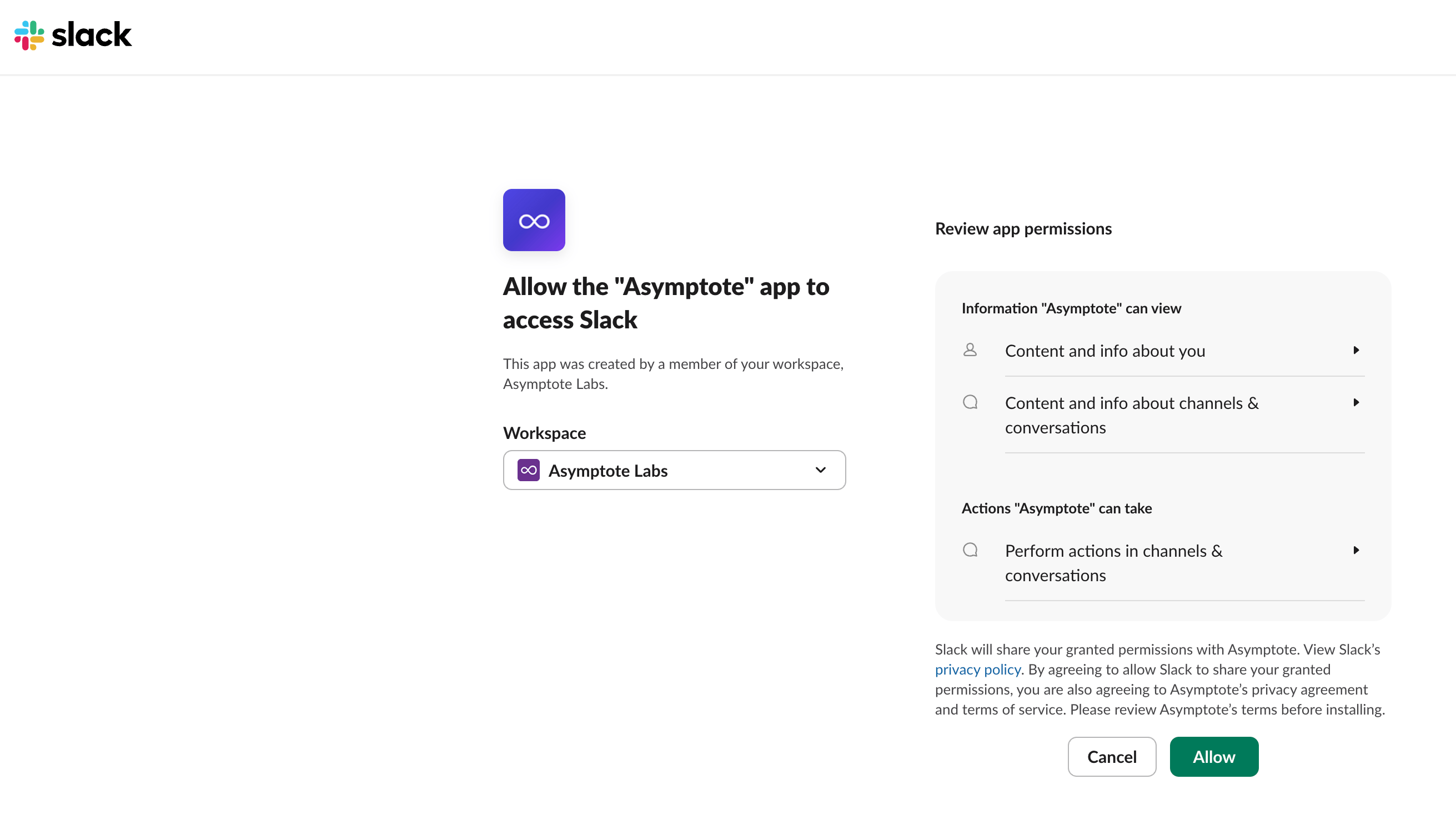
5. In Slack, select the workspace where Asymptote should send alert notifications.
6. Review the permissions requested by the Asymptote app.
7. Click **Allow**.
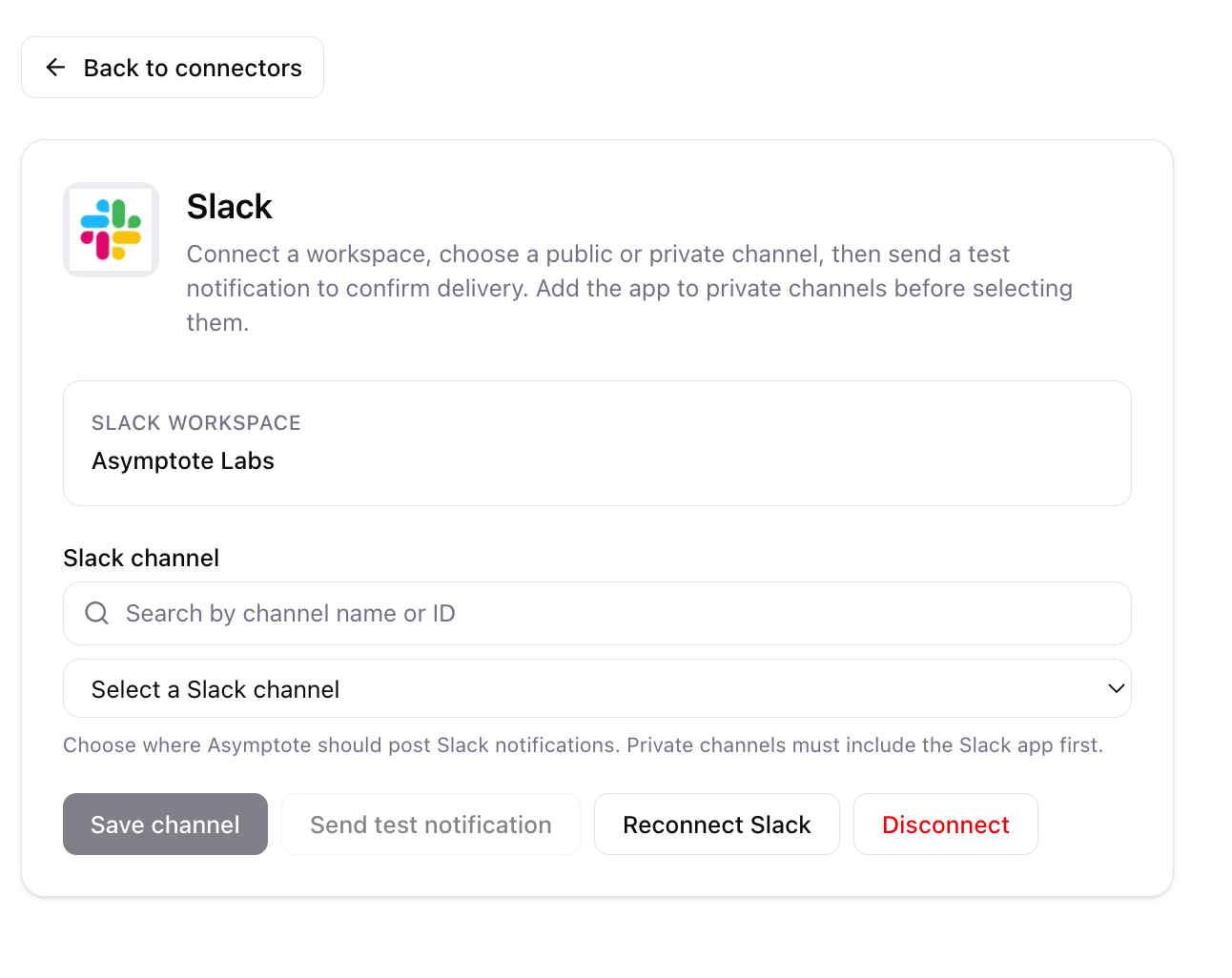
 After Slack redirects back to Asymptote, choose the channel where alert notifications should be delivered.
## Choose a Notification Channel
1. Open the Slack connector in Asymptote.
2. Search for the channel by name or channel ID.
3. Select the Slack channel from the dropdown.
4. Click **Save channel**.
5. Click **Send test notification** to confirm Asymptote can post to the channel.
After Slack redirects back to Asymptote, choose the channel where alert notifications should be delivered.
## Choose a Notification Channel
1. Open the Slack connector in Asymptote.
2. Search for the channel by name or channel ID.
3. Select the Slack channel from the dropdown.
4. Click **Save channel**.
5. Click **Send test notification** to confirm Asymptote can post to the channel.
 ## Add Private Channels
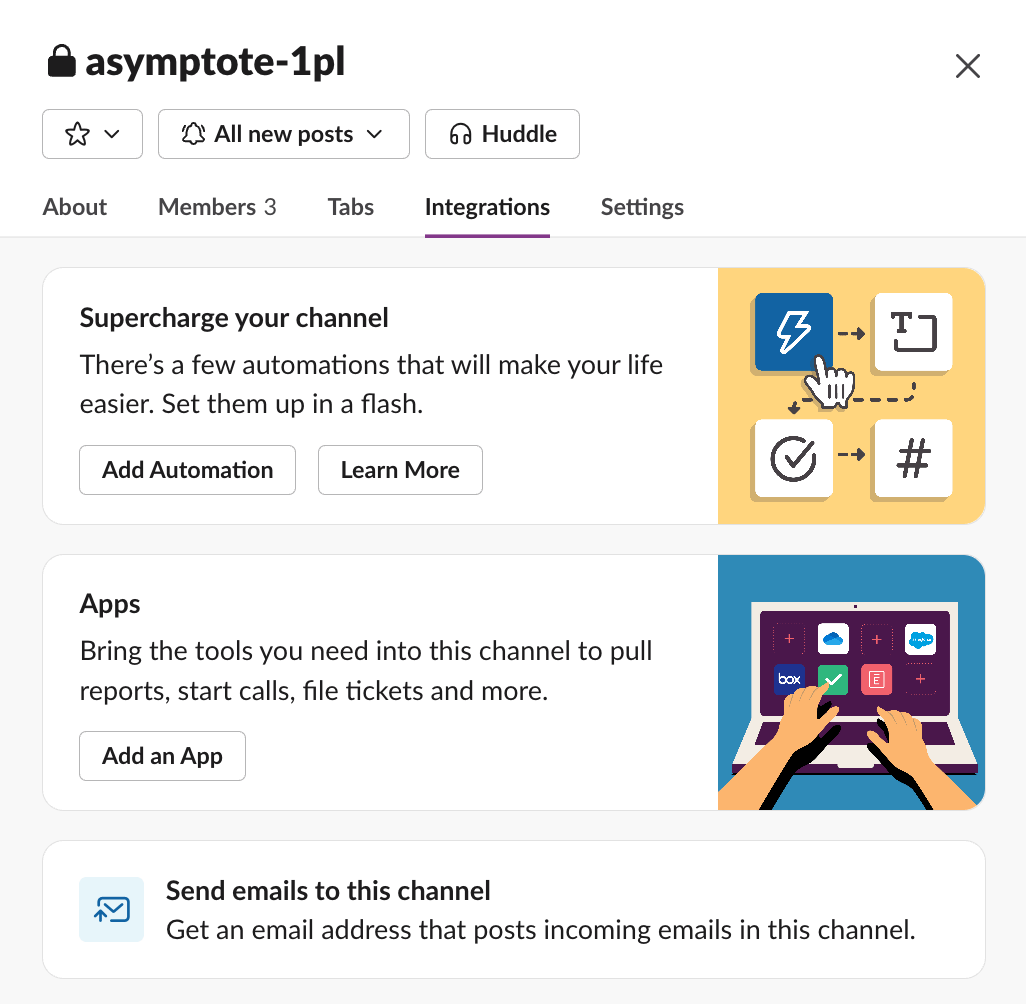
Slack only allows apps to post in private channels after the app has been added to that channel.
1. Open the private Slack channel.
2. Click the channel name to open channel details.
3. Go to **Integrations**.
4. Click **Add apps**.
5. Search for **Asymptote**.
6. Add the Asymptote app to the channel.
7. Return to the Slack connector in Asymptote.
8. Search for the private channel by name or channel ID.
9. Select it, then click **Save channel**.
10. Click **Send test notification** to confirm delivery.
## Add Private Channels
Slack only allows apps to post in private channels after the app has been added to that channel.
1. Open the private Slack channel.
2. Click the channel name to open channel details.
3. Go to **Integrations**.
4. Click **Add apps**.
5. Search for **Asymptote**.
6. Add the Asymptote app to the channel.
7. Return to the Slack connector in Asymptote.
8. Search for the private channel by name or channel ID.
9. Select it, then click **Save channel**.
10. Click **Send test notification** to confirm delivery.
 If the private channel does not appear immediately, refresh the Asymptote connector page and search again. Make sure the Asymptote app is a member of the private channel before selecting it.