> ## Documentation Index
> Fetch the complete documentation index at: https://docs.asymptotelabs.ai/llms.txt
> Use this file to discover all available pages before exploring further.
# Wazuh
> Forward Beacon endpoint events into Wazuh with localfile ingestion.
## Forwarding Overview
Beacon writes normalized AI runtime telemetry as one JSON object per line in the active local [runtime JSONL log](/concepts/core-concepts#runtime-jsonl-log). Beacon keeps that handoff path bounded with local rotation. Wazuh ingests those events with a standard `localfile` input and Beacon's generated Wazuh rules.
Use this guide when you want Wazuh to alert on local AI agent activity such as prompt submissions, command execution, tool use, file reads and writes, approval decisions, and endpoint health events.
## How it works
Beacon does not send events directly to the Wazuh API. The integration is file based:
1. Beacon writes endpoint events to `runtime.jsonl`.
2. Wazuh `logcollector` tails that file with `json`.
3. Wazuh decodes each JSON object and stores the fields under `data.*`.
4. Beacon's Wazuh rules classify events with rule IDs such as `100500` and `100550`.
5. Analysts review the events in Wazuh Dashboard under **Threat Hunting** → **Events**.
This keeps Beacon local-only. Wazuh owns collection, indexing, retention, user access, and dashboard behavior.
## Runtime log paths
| Mode | Runtime log |
| ----------- | --------------------------------------- |
| User mode | `~/.beacon/endpoint/logs/runtime.jsonl` |
| System mode | `/var/log/beacon-agent/runtime.jsonl` |
Use system mode for MDM or fleet deployments so all managed endpoints write to the shared `/var/log/beacon-agent/runtime.jsonl` path. User mode is convenient for local testing, especially on a workstation running Wazuh in Docker.
## Prerequisites
Before configuring Wazuh, make sure:
* Beacon is installed or available on the endpoint.
* The Beacon runtime log exists, or Beacon can create it.
* Wazuh manager or Wazuh agent can read the runtime log path.
* You know where your Wazuh manager loads custom rules from. For many Linux and Docker installs this is `/var/ossec/etc/rules`.
* You can restart or reload Wazuh after changing `ossec.conf` or custom rules.
## Production setup
For managed endpoints, install Beacon in system mode and configure Wazuh to tail the system runtime log.
### 1. Configure Beacon
Install or repair Beacon in system mode:
```bash title="Install or repair Beacon in system mode" theme={null}
sudo beacon endpoint install --system
```
Confirm the runtime log path:
```bash title="Confirm the runtime log path" theme={null}
sudo beacon endpoint status --system
```
### 2. Generate Wazuh content
Generate the Wazuh pack:
```bash title="Generate the Wazuh pack" theme={null}
beacon endpoint wazuh install-pack --system --output ./beacon-wazuh
```
The pack includes:
* `ossec-localfile.xml`: Wazuh `localfile` snippet for the Beacon runtime log.
* `beacon-rules.xml`: Wazuh rules for Beacon endpoint events.
* `sample-event.jsonl`: known-good sample events.
* `apply-dashboard-default-columns.sh`: optional helper for Wazuh Dashboard display columns.
* `README.md`: install notes.
### 3. Install Wazuh localfile config
Add the generated `ossec-localfile.xml` block to the Wazuh agent or manager configuration that runs on the endpoint:
```xml theme={null}
/var/log/beacon-agent/runtime.jsonl
json
```
If Beacon writes somewhere custom, generate the snippet with that path:
```bash title="If Beacon writes somewhere custom, generate the snippet with that path" theme={null}
beacon endpoint wazuh print-config --log-path /path/to/runtime.jsonl
```
### 4. Install Beacon rules
Install `beacon-rules.xml` on the Wazuh manager, usually under:
```text theme={null}
/var/ossec/etc/rules/beacon-rules.xml
```
Then restart or reload Wazuh so the localfile input and rules are active.
## Local Docker test
Use this flow when Wazuh runs locally with Docker Compose and Beacon runs on your workstation. The key idea is that Wazuh reads paths from inside the container, so the host Beacon log directory must be bind-mounted into the Wazuh manager container.
### 1. Confirm the Beacon runtime log
User-mode Beacon writes to:
```bash title="User-mode Beacon writes to" theme={null}
ls -l "$HOME/.beacon/endpoint/logs/runtime.jsonl"
```
System-mode Beacon writes to:
```bash title="System-mode Beacon writes to" theme={null}
sudo ls -l /var/log/beacon-agent/runtime.jsonl
```
For local Docker testing on macOS, user mode is often easier. The important detail is that Wazuh reads paths from inside the container, not from the host filesystem.
### 2. Mount the Beacon log into Wazuh
In the Wazuh manager service in your Docker Compose file, mount the host Beacon log directory into the manager container. For a user-mode Beacon install:
```yaml theme={null}
services:
wazuh.manager:
volumes:
- /Users//.beacon/endpoint/logs:/var/log/beacon-agent:ro
```
If you are testing a system-mode Beacon install, mount the system log directory instead:
```yaml theme={null}
services:
wazuh.manager:
volumes:
- /var/log/beacon-agent:/var/log/beacon-agent:ro
```
The Wazuh localfile location should use the container-side path:
```xml theme={null}
/var/log/beacon-agent/runtime.jsonl
json
```
Add that block to the Wazuh manager configuration. In the standard single-node Wazuh Docker setup, this is usually the host-mounted manager config file, such as:
```text theme={null}
config/wazuh_cluster/wazuh_manager.conf
```
After editing the Compose file, recreate the manager so Docker applies the new mount:
```bash title="After editing the Compose file, recreate the manager so Docker applies the new mount" theme={null}
docker compose up -d wazuh.manager
```
### 3. Install the Beacon Wazuh rules
Generate the Beacon Wazuh pack with the same container-side log path:
```bash title="Generate the Beacon Wazuh pack with the same container-side log path" theme={null}
beacon endpoint wazuh install-pack \
--output ./beacon-wazuh \
--log-path /var/log/beacon-agent/runtime.jsonl
```
Copy the rules into the Wazuh manager container:
```bash title="Copy the rules into the Wazuh manager container" theme={null}
docker cp ./beacon-wazuh/beacon-rules.xml \
:/var/ossec/etc/rules/beacon-rules.xml
```
Set ownership and permissions if needed:
```bash title="Set ownership and permissions if needed" theme={null}
docker exec chown wazuh:wazuh /var/ossec/etc/rules/beacon-rules.xml
docker exec chmod 660 /var/ossec/etc/rules/beacon-rules.xml
```
Then restart the Wazuh manager so the rule file and localfile config are loaded:
```bash title="Then restart the Wazuh manager so the rule file and localfile config are loaded" theme={null}
docker restart
```
### 4. Write a validation event
Write a known-good validation event to the host-side Beacon runtime log. For user mode:
```bash title="Write a known-good validation event to the host-side Beacon runtime log. For user mode" theme={null}
beacon endpoint wazuh validate \
--user \
--log-path "$HOME/.beacon/endpoint/logs/runtime.jsonl"
```
For system mode:
```bash title="Use system mode" theme={null}
sudo beacon endpoint wazuh validate --system
```
Confirm the manager can see the mounted log and that Wazuh has emitted an alert:
```bash title="Confirm the manager can see the mounted log and that Wazuh has emitted an alert" theme={null}
docker exec tail -n 5 /var/log/beacon-agent/runtime.jsonl
docker exec \
sh -lc 'grep -F "Beacon endpoint Wazuh validation event" /var/ossec/logs/alerts/alerts.json | tail -n 5'
```
Expected rule IDs:
* `100500`: base Beacon endpoint runtime event.
* `100550`: AI agent workflow telemetry, such as prompts, tool activity, and file activity.
## Wazuh Dashboard
Open Wazuh Dashboard, then go to **Threat Hunting** → **Events**. Start with one of these filters:
```text theme={null}
data.vendor: beacon
```
```text theme={null}
data.vendor: beacon AND data.event.action: prompt.submitted
```
```text theme={null}
data.vendor: beacon AND data.harness.name: cursor
```
Use **Columns** to add Beacon fields to the event table:
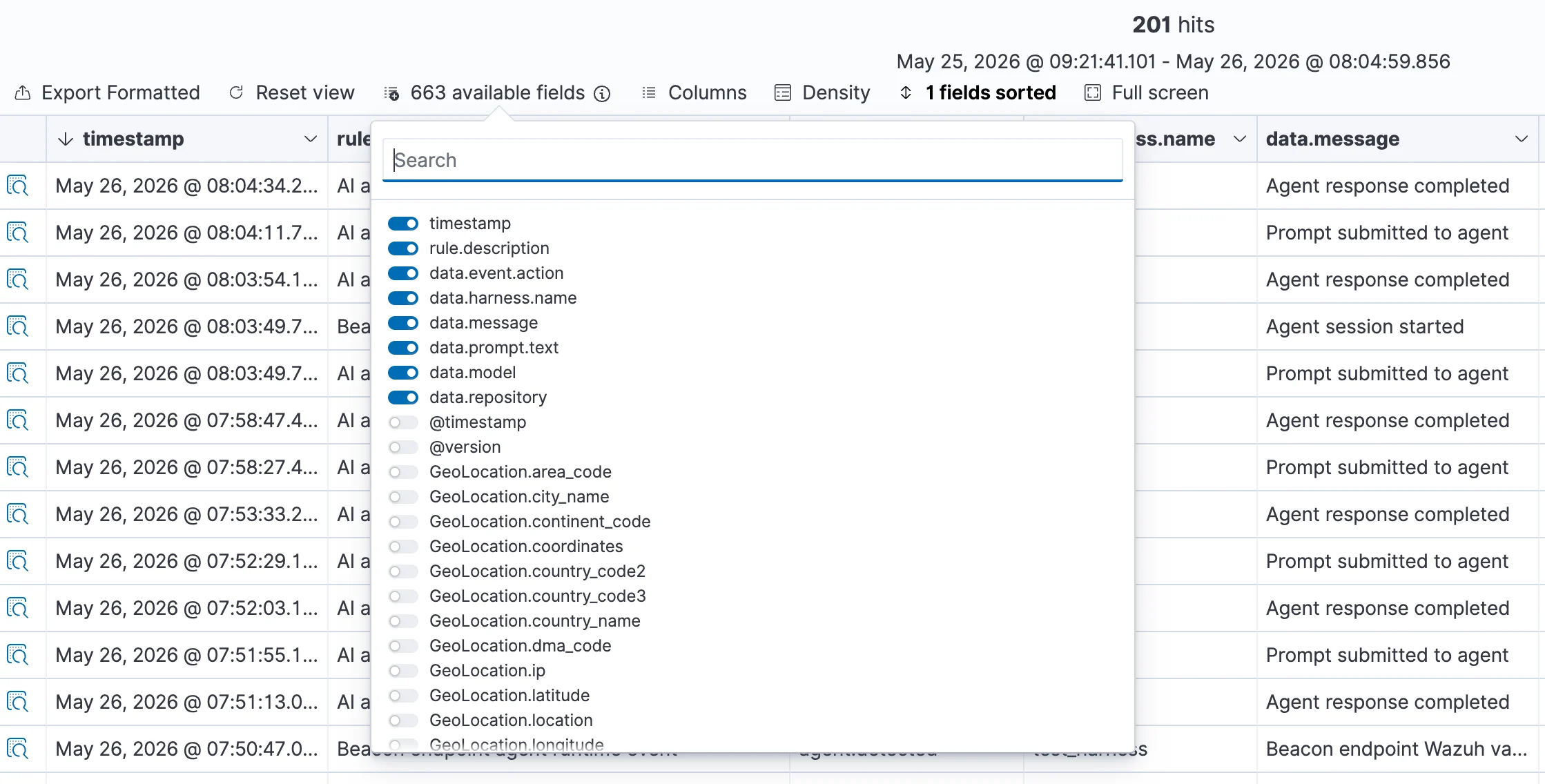 Useful display fields include:
```text theme={null}
timestamp
rule.description
data.event.action
data.harness.name
data.message
data.prompt.text
data.model
data.repository
data.command
data.file
data.session.id
data.session.working_directory
```
Wazuh stores decoded Beacon fields under `data.*`. In the default Wazuh alert index, command and file details are usually exposed as `data.command` and `data.file`. Nested raw Beacon fields such as `data.command.command`, `data.file.path`, and `data.tool.name` may not appear as separate display fields unless your Wazuh indexing configuration maps them.
You can also apply the recommended columns through the generated helper:
```bash title="You can also apply the recommended columns through the generated helper" theme={null}
cd ./beacon-wazuh
WAZUH_DASHBOARD_URL=https://localhost \
WAZUH_DASHBOARD_USER=admin \
WAZUH_DASHBOARD_PASSWORD="$WAZUH_DASHBOARD_PASSWORD" \
sh apply-dashboard-default-columns.sh
```
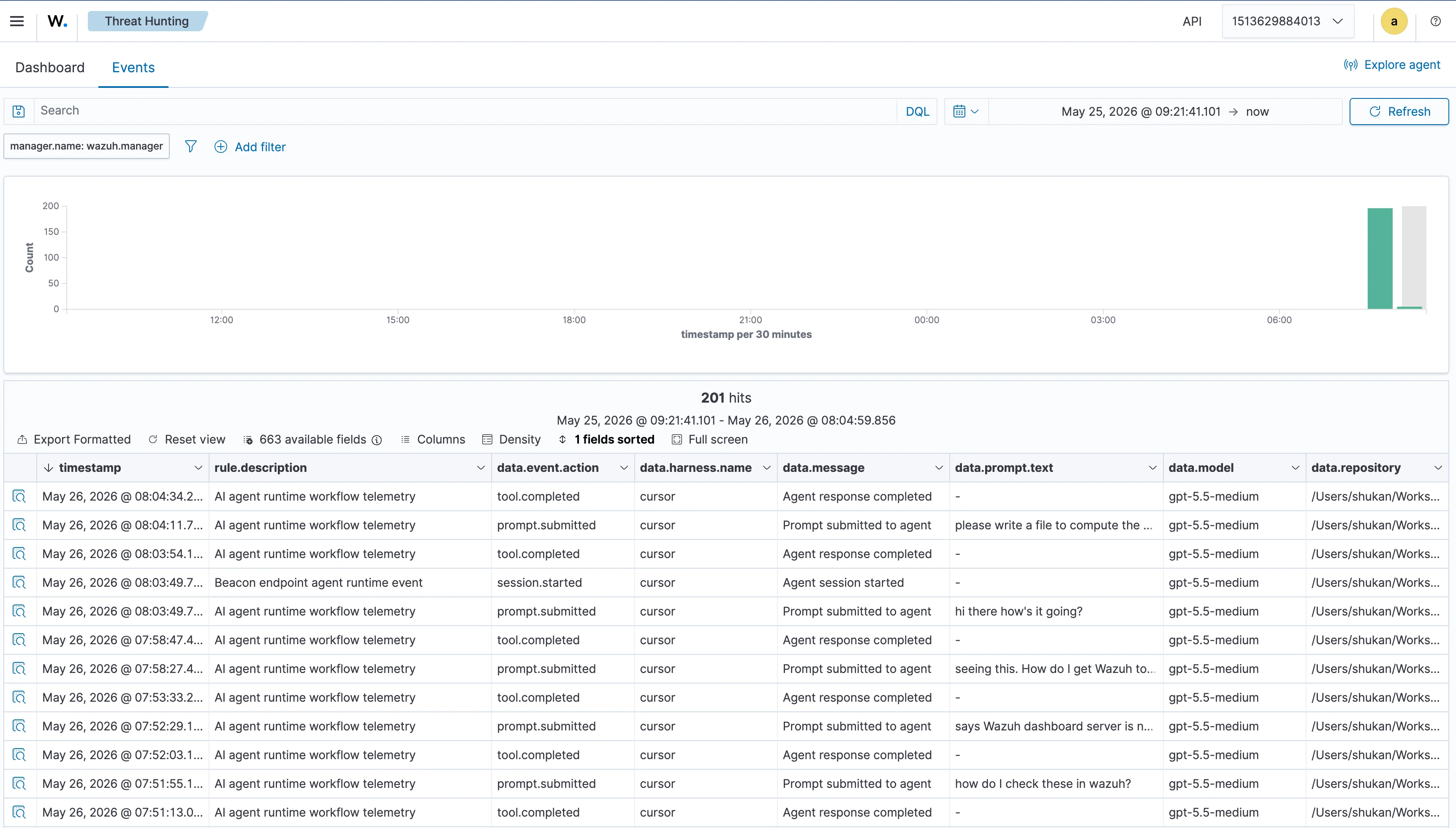
After configuration, Beacon prompts and workflow events should appear in the Threat Hunting event table:
Useful display fields include:
```text theme={null}
timestamp
rule.description
data.event.action
data.harness.name
data.message
data.prompt.text
data.model
data.repository
data.command
data.file
data.session.id
data.session.working_directory
```
Wazuh stores decoded Beacon fields under `data.*`. In the default Wazuh alert index, command and file details are usually exposed as `data.command` and `data.file`. Nested raw Beacon fields such as `data.command.command`, `data.file.path`, and `data.tool.name` may not appear as separate display fields unless your Wazuh indexing configuration maps them.
You can also apply the recommended columns through the generated helper:
```bash title="You can also apply the recommended columns through the generated helper" theme={null}
cd ./beacon-wazuh
WAZUH_DASHBOARD_URL=https://localhost \
WAZUH_DASHBOARD_USER=admin \
WAZUH_DASHBOARD_PASSWORD="$WAZUH_DASHBOARD_PASSWORD" \
sh apply-dashboard-default-columns.sh
```
After configuration, Beacon prompts and workflow events should appear in the Threat Hunting event table:
 ## Validate ingestion end to end
For production system-mode deployments, write a validation event:
```bash title="For production system-mode deployments, write a validation event" theme={null}
sudo /opt/beacon/bin/beacon endpoint wazuh validate --system
```
Then confirm the validation event appears in Wazuh Dashboard or in `alerts.json`.
If the event does not appear, verify that the runtime log exists, Beacon can write to it, and Wazuh can read it:
```bash title="If the event does not appear, verify that the runtime log exists, Beacon can write to it, and Wazuh can read it" theme={null}
sudo test -w /var/log/beacon-agent/runtime.jsonl
sudo test -r /var/log/beacon-agent/runtime.jsonl
sudo launchctl print system/com.beacon.endpoint.collector
```
For Docker-based tests, also verify the manager container can resolve its peer services and see the mounted runtime log:
```bash title="For Docker-based tests, also verify the manager container can resolve its peer services and see the mounted runtime log" theme={null}
docker network inspect _default
docker exec ls -l /var/log/beacon-agent/runtime.jsonl
docker exec sh -lc 'grep -i beacon /var/ossec/logs/ossec.log | tail -n 20'
```
If Wazuh Dashboard says the server is not ready yet, check that the dashboard can resolve and connect to the Wazuh indexer. Recreating the indexer and dashboard containers with Docker Compose usually restores the expected Compose DNS aliases:
```bash title="If Wazuh Dashboard says the server is not ready yet, check that the dashboard can resolve and connect to the Wazuh indexer. Recreating the indexer and dashboard containers with Docker Compose usually restores the expected Compose DNS aliases" theme={null}
docker compose up -d --force-recreate wazuh.indexer wazuh.dashboard
```
## Troubleshooting
### No Beacon alerts in Wazuh
Check each handoff point:
* Beacon wrote an event to the host runtime log.
* The Wazuh manager or agent can read the same file path.
* Docker deployments use the container-side path in ``.
* `beacon-rules.xml` is installed on the manager and Wazuh was restarted after the file was copied.
* Wazuh `logcollector` reports that it is analyzing the Beacon runtime log.
Useful checks:
```bash title="Useful checks" theme={null}
tail -n 5 "$HOME/.beacon/endpoint/logs/runtime.jsonl"
docker exec tail -n 5 /var/log/beacon-agent/runtime.jsonl
docker exec sh -lc 'grep -i beacon /var/ossec/logs/ossec.log | tail -n 20'
```
### Validation events appear, but prompts do not
The validation event proves Wazuh can ingest the file. Prompt and tool activity also require the relevant runtime integration, such as Cursor hooks or OTLP telemetry, to be configured.
For Cursor hooks, check:
```bash title="Check Cursor hooks" theme={null}
beacon endpoint hooks status --harness cursor
```
Then submit a new prompt and search Wazuh for:
```text theme={null}
data.vendor: beacon AND data.event.action: prompt.submitted
```
### Fields are present only inside `full_log`
Wazuh preserves the raw Beacon JSON in `full_log`, but not every nested JSON field is always exposed as its own dashboard column. Use the `data.*` fields listed above for the default Wazuh alert index. If your team needs deeper nested fields as first-class columns, adjust Wazuh index templates or downstream parsing for your deployment.
## Related
Review Beacon Wazuh commands and flags.
Review normalized Beacon JSONL fields and example events.
## Validate ingestion end to end
For production system-mode deployments, write a validation event:
```bash title="For production system-mode deployments, write a validation event" theme={null}
sudo /opt/beacon/bin/beacon endpoint wazuh validate --system
```
Then confirm the validation event appears in Wazuh Dashboard or in `alerts.json`.
If the event does not appear, verify that the runtime log exists, Beacon can write to it, and Wazuh can read it:
```bash title="If the event does not appear, verify that the runtime log exists, Beacon can write to it, and Wazuh can read it" theme={null}
sudo test -w /var/log/beacon-agent/runtime.jsonl
sudo test -r /var/log/beacon-agent/runtime.jsonl
sudo launchctl print system/com.beacon.endpoint.collector
```
For Docker-based tests, also verify the manager container can resolve its peer services and see the mounted runtime log:
```bash title="For Docker-based tests, also verify the manager container can resolve its peer services and see the mounted runtime log" theme={null}
docker network inspect _default
docker exec ls -l /var/log/beacon-agent/runtime.jsonl
docker exec sh -lc 'grep -i beacon /var/ossec/logs/ossec.log | tail -n 20'
```
If Wazuh Dashboard says the server is not ready yet, check that the dashboard can resolve and connect to the Wazuh indexer. Recreating the indexer and dashboard containers with Docker Compose usually restores the expected Compose DNS aliases:
```bash title="If Wazuh Dashboard says the server is not ready yet, check that the dashboard can resolve and connect to the Wazuh indexer. Recreating the indexer and dashboard containers with Docker Compose usually restores the expected Compose DNS aliases" theme={null}
docker compose up -d --force-recreate wazuh.indexer wazuh.dashboard
```
## Troubleshooting
### No Beacon alerts in Wazuh
Check each handoff point:
* Beacon wrote an event to the host runtime log.
* The Wazuh manager or agent can read the same file path.
* Docker deployments use the container-side path in ``.
* `beacon-rules.xml` is installed on the manager and Wazuh was restarted after the file was copied.
* Wazuh `logcollector` reports that it is analyzing the Beacon runtime log.
Useful checks:
```bash title="Useful checks" theme={null}
tail -n 5 "$HOME/.beacon/endpoint/logs/runtime.jsonl"
docker exec tail -n 5 /var/log/beacon-agent/runtime.jsonl
docker exec sh -lc 'grep -i beacon /var/ossec/logs/ossec.log | tail -n 20'
```
### Validation events appear, but prompts do not
The validation event proves Wazuh can ingest the file. Prompt and tool activity also require the relevant runtime integration, such as Cursor hooks or OTLP telemetry, to be configured.
For Cursor hooks, check:
```bash title="Check Cursor hooks" theme={null}
beacon endpoint hooks status --harness cursor
```
Then submit a new prompt and search Wazuh for:
```text theme={null}
data.vendor: beacon AND data.event.action: prompt.submitted
```
### Fields are present only inside `full_log`
Wazuh preserves the raw Beacon JSON in `full_log`, but not every nested JSON field is always exposed as its own dashboard column. Use the `data.*` fields listed above for the default Wazuh alert index. If your team needs deeper nested fields as first-class columns, adjust Wazuh index templates or downstream parsing for your deployment.
## Related
Review Beacon Wazuh commands and flags.
Review normalized Beacon JSONL fields and example events.