> ## Documentation Index
> Fetch the complete documentation index at: https://docs.asymptotelabs.ai/llms.txt
> Use this file to discover all available pages before exploring further.
# beacon endpoint integrations vscode
> Set up VS Code Copilot OpenTelemetry export for Beacon
## Integration Command
VS Code Copilot Chat can export OpenTelemetry to Beacon's local collector. Beacon can configure VS Code user settings, show integration status, and validate whether VS Code-derived events are arriving in the runtime log.
```bash title="Command syntax" theme={null}
beacon endpoint integrations vscode [command]
```
## Commands
Print VS Code Copilot OTel setup guidance.
Configure VS Code Copilot OTel settings.
Show VS Code endpoint integration status.
Validate whether VS Code events are arriving.
## Recommended setup
Use the endpoint harness path for first-time setup:
```bash title="Use the endpoint harness path for first-time setup" theme={null}
beacon endpoint install --harness vscode
```
This starts Beacon's local collector and configures VS Code Copilot Chat to export OTLP/HTTP to `http://127.0.0.1:4318`. Reload VS Code after setup.
Validate recent events:
```bash title="Validate recent events" theme={null}
beacon endpoint integrations vscode validate --since 10m
```
OTel is the preferred VS Code collection path. It provides Copilot session, prompt, model, and tool activity without requiring VS Code's preview hook feature.
## Optional hooks
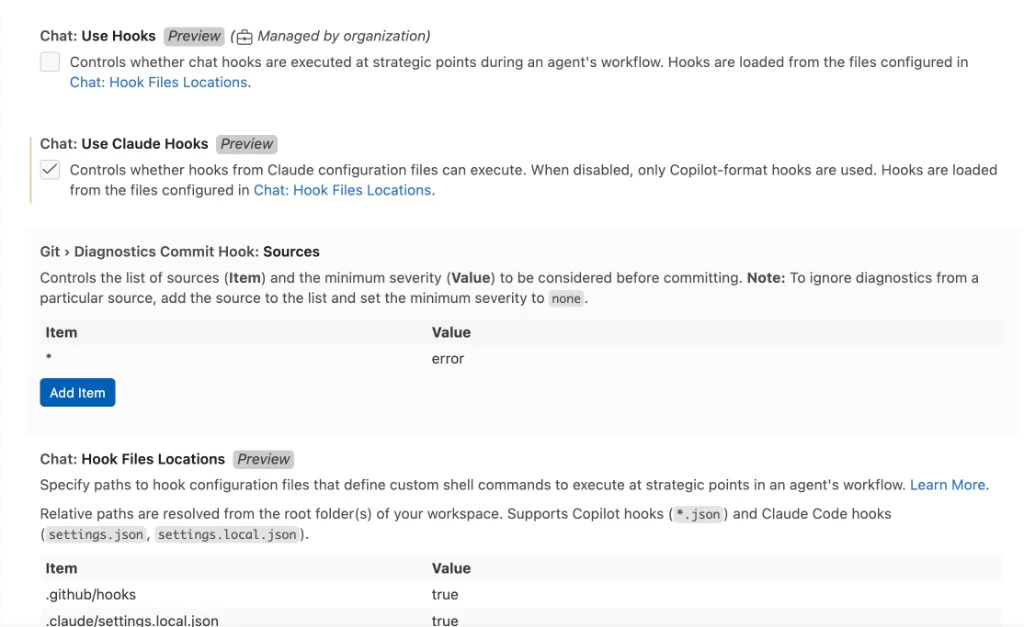
VS Code hooks are currently in preview and may be disabled by organization policy. Use hooks only when you want additional lifecycle/tool detail or cross-agent coverage beyond Copilot's OTel stream.
Before installing hooks, confirm `Chat: Use Hooks` is enabled in VS Code settings. `Chat: Use Claude Hooks` is not enough for Copilot-format `.github/hooks/*.json` files. If `Chat: Use Hooks` is unchecked and managed by your organization, VS Code will not execute Beacon's VS Code hook file.
 ```bash title="Install runtime hooks" theme={null}
cd /path/to/workspace
beacon endpoint hooks install --harness vscode --level project
```
Hook-derived events use `harness.name=vscode`. OTel-derived events use `harness.name=vscode_copilot`.
## Flags
| Flag | Description |
| -------------------- | ------------------------------------------------------------------------------------------------ |
| `--endpoint ` | OTLP HTTP endpoint for VS Code Copilot. Defaults to Beacon's configured local OTLP HTTP receiver |
| `--workspace ` | Workspace path for `.vscode/settings.json` instead of user settings |
| `--capture-content` | Enable full Copilot prompt, response, tool argument, and tool result capture |
| `--since ` | Require a VS Code event within this duration, such as `10m`. Validate only |
| `--json` | Print status as JSON. Status only |
| `--user` | Use per-user endpoint paths. Enabled by default |
| `--system` | Use system endpoint paths and launch daemon |
| `--log-path ` | Runtime JSONL log path |
## beacon endpoint integrations vscode setup
`beacon endpoint integrations vscode setup` writes VS Code Copilot OTel settings without reinstalling the endpoint collector.
```bash title="Set up the integration" theme={null}
beacon endpoint integrations vscode setup
```
Prefer `beacon endpoint install --harness vscode` for first-time setup because it configures both the collector and VS Code settings.
## beacon endpoint integrations vscode status
`beacon endpoint integrations vscode status` reports whether VS Code is detected, whether Copilot OTel settings point to Beacon, and whether VS Code events have been observed.
```bash title="Check status" theme={null}
beacon endpoint integrations vscode status
```
Print status as JSON:
```bash title="Print status as JSON" theme={null}
beacon endpoint integrations vscode status --json
```
## beacon endpoint integrations vscode validate
`beacon endpoint integrations vscode validate` checks whether VS Code OTel or hook-derived events have arrived in the endpoint runtime log.
```bash title="Run the validation check" theme={null}
beacon endpoint integrations vscode validate --since 10m
```
If validation fails, Beacon prints VS Code setup guidance using any endpoint or workspace path you provide.
## Related
Review collection paths and telemetry coverage.
Install and configure the local endpoint collector.
Install optional hook-based telemetry where supported.
See how Beacon discovers and configures supported runtimes.
```bash title="Install runtime hooks" theme={null}
cd /path/to/workspace
beacon endpoint hooks install --harness vscode --level project
```
Hook-derived events use `harness.name=vscode`. OTel-derived events use `harness.name=vscode_copilot`.
## Flags
| Flag | Description |
| -------------------- | ------------------------------------------------------------------------------------------------ |
| `--endpoint ` | OTLP HTTP endpoint for VS Code Copilot. Defaults to Beacon's configured local OTLP HTTP receiver |
| `--workspace ` | Workspace path for `.vscode/settings.json` instead of user settings |
| `--capture-content` | Enable full Copilot prompt, response, tool argument, and tool result capture |
| `--since ` | Require a VS Code event within this duration, such as `10m`. Validate only |
| `--json` | Print status as JSON. Status only |
| `--user` | Use per-user endpoint paths. Enabled by default |
| `--system` | Use system endpoint paths and launch daemon |
| `--log-path ` | Runtime JSONL log path |
## beacon endpoint integrations vscode setup
`beacon endpoint integrations vscode setup` writes VS Code Copilot OTel settings without reinstalling the endpoint collector.
```bash title="Set up the integration" theme={null}
beacon endpoint integrations vscode setup
```
Prefer `beacon endpoint install --harness vscode` for first-time setup because it configures both the collector and VS Code settings.
## beacon endpoint integrations vscode status
`beacon endpoint integrations vscode status` reports whether VS Code is detected, whether Copilot OTel settings point to Beacon, and whether VS Code events have been observed.
```bash title="Check status" theme={null}
beacon endpoint integrations vscode status
```
Print status as JSON:
```bash title="Print status as JSON" theme={null}
beacon endpoint integrations vscode status --json
```
## beacon endpoint integrations vscode validate
`beacon endpoint integrations vscode validate` checks whether VS Code OTel or hook-derived events have arrived in the endpoint runtime log.
```bash title="Run the validation check" theme={null}
beacon endpoint integrations vscode validate --since 10m
```
If validation fails, Beacon prints VS Code setup guidance using any endpoint or workspace path you provide.
## Related
Review collection paths and telemetry coverage.
Install and configure the local endpoint collector.
Install optional hook-based telemetry where supported.
See how Beacon discovers and configures supported runtimes.